AnExplorer Pro File Manager
- 4.1
- Rating
- 50.00K
- Installs
- $29.99
- Price

 Analysis by App-foxy
I usually judge a file manager by what happens when a simple task becomes slightly complicated: a document arrives on my phone, I need to move it somewhere else, open it on another screen, and leave the device tidy afterward. That is the kind of situation where AnExplorer Pro File Manager makes sense. It is a business-focused file utility from DWorkS, built around managing files across phones and a wide range of connected device types rather than treating storage as a single folder on one handset.
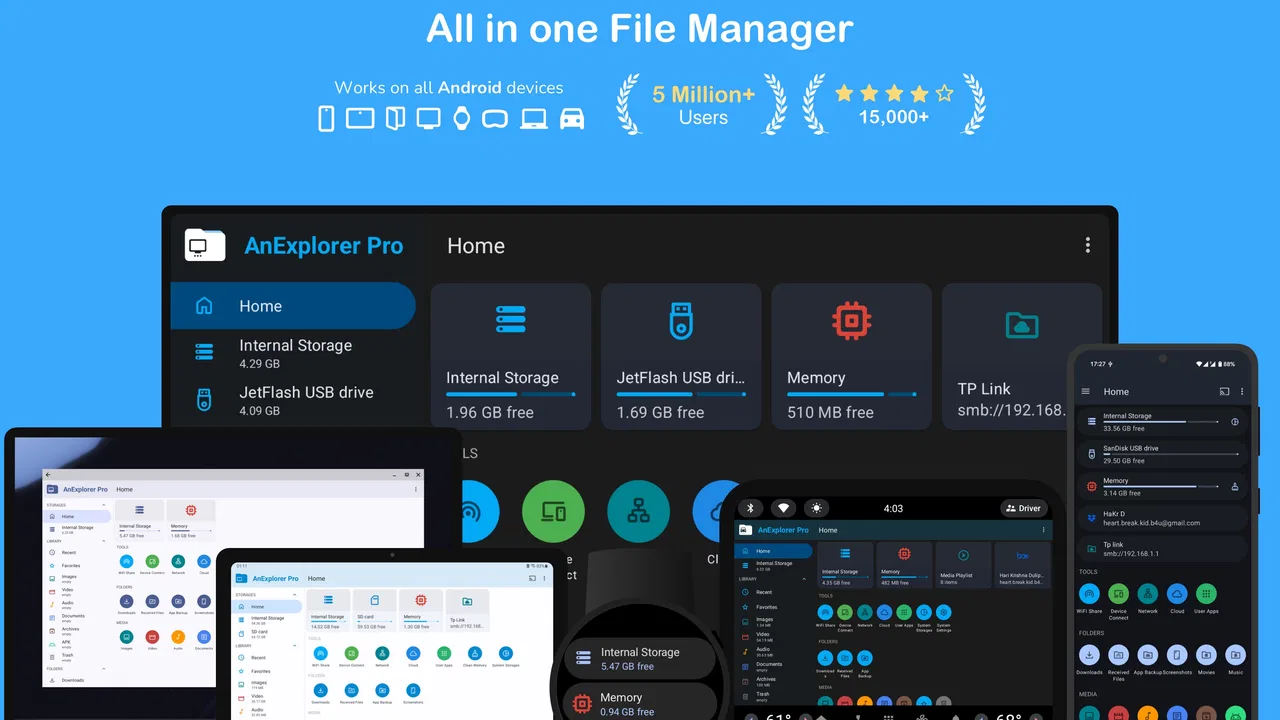
My first impression is that this is aimed at people who want a central place for everyday file work. The app is presented for phones, televisions, watches, cars, XR and VR devices, and Chromebooks, so its appeal is broader than a basic downloads folder. I would describe it as a practical control panel for personal files: useful when files move between devices, less compelling when all I need is a quick way to delete a screenshot.
From a loose file to a finished handoff
When I’m dealing with a file that needs to leave one device and arrive somewhere useful, I find it helps to think beyond the transfer itself: I want a clear destination and a tidy finish. This section follows that small but important shift in perspective, then turns to how I’d keep shared-device routines orderly without assuming everyone should handle files the same way.
You May Also Like

 Blood Strike: 2.5 Anniversary
Blood Strike’s Loadouts Turn Every Drop Into a Tactical Gamble
A close look at Blood Strike’s custom loadouts: how fast access to signature weapons reshapes its battle royale rhythm, rewards preparation, and narrows the gap between fights.

 Pandora - Music & Podcasts
Pandora’s Music Is Easy to Start, but Harder to Recover
Pandora’s strength is its low-effort path from a seed to a station. Its weak spot is how much confidence it asks you to place in connection, setup, and quiet recovery.

 8 Ball Pool
8 Ball Pool Is Built on Rivalries, Rematches, and Routine
A close look at the rivalries, rematches, shared routines, and unanswered safety questions that turn a quick pool match into a persistent mobile community.

 Samsung Music
Samsung Music’s Quiet Strength Is Playing What You Already Own
Its reach comes less from spectacle than from dependable access to a personal library. That simplicity is both the app’s strongest retention engine and its ceiling.

 AccuWeather: Weather Radar
AccuWeather Review: A Quick, Clear Forecast for Everyday Decisions
For everyday plans, the best forecast is the one you can understand quickly. AccuWeather makes rain timing, radar, and local conditions easy to act on, with a few trade-offs.

 Hill Climb Racing
Why Hill Climb Racing Still Turns Crashes Into One More Run
A tiny car, a bumpy hill and one more upgrade: Hill Climb Racing keeps resurfacing because its simple chaos makes every near-miss feel personal.
More From Our News Desk
View All News


Starting with the real problem: finding what arrived
Imagine that I receive a work document on my phone and later need it on a Chromebook. The first challenge is not editing the document; it is locating the correct copy among downloads, images, shared files, and older versions. AnExplorer Pro File Manager is valuable at this starting point because it gives the task a dedicated workspace instead of making me jump between separate apps.
I would begin by opening the file manager and identifying where the document landed. This sounds ordinary, but it is where many mobile workflows become messy. A gallery is good for pictures, a document app is good for reading, and a browser may show downloads without giving me a useful overview of everything else. A dedicated file manager lets me think in terms of files and folders from the outset.
The app is suitable for a business setting in the everyday sense: organizing documents, keeping project material together, and preparing files for another device. It is also rated for Everyone, which makes it approachable for a household or shared-device environment. That does not mean every person will enjoy a file-oriented interface, but it does make the basic concept easy to understand.
Sorting before moving saves time later
My preferred workflow is to pause before transferring anything. I check the filename, place related items in a sensible folder, and remove obvious duplicates or temporary material. This is one of the less glamorous strengths of using a file manager: it encourages a clean handoff instead of sending a chaotic pile of files to the next screen.
For example, if I am preparing receipts for an accountant, I would separate them from personal photos and rename them consistently before moving them. The useful insight here is that the file manager is not merely the last step after downloading. It can be the staging area where I turn scattered material into something another person can actually use.
I would also avoid relying on memory when several files have similar names. Checking the folder location and opening the intended item before transferring it reduces the risk of sending an old copy. That is a small habit, but it matters more than a flashy interface when the app is being used for real work.
Moving the file without losing the original
Once the source file is clear, I decide whether the job calls for copying or moving. Copying is safer when I still need the original location, while moving is better when I am deliberately reorganizing storage. I treat that choice as an important part of the workflow rather than tapping through it automatically.
This is where a full file manager has an advantage over many single-purpose apps. Instead of sharing a file and hoping the receiving app stores it sensibly, I can plan where the item belongs. That is particularly helpful for folders containing several related documents, because the destination becomes part of the organization rather than an afterthought.
I would still check the destination afterward. A successful-looking action is not enough for important material; I want to confirm that the file is visible in the intended folder and that the name remains understandable. If the device is short on space, I would also clean up the original only after confirming the copy is usable.
Preparing the handoff to another device
The broad device focus is the most distinctive part of AnExplorer Pro File Manager. The same general file-management idea can matter on a phone, a Chromebook, a television, a watch, a car system, or an XR or VR device, even though the practical screen and input method may differ. I see the app as useful when the file itself has to travel through a mixed-device routine.
A realistic example would be preparing a video or document on a phone before using it on a larger screen. I would first organize the file on the phone, then use the receiving device’s available file workflow to locate it. The benefit is not that every handoff becomes automatic; the benefit is that I have a consistent place to inspect and prepare the material before the transfer.
This consistency can be especially useful for people who alternate between personal and work devices. Instead of treating every destination as a completely separate storage problem, I can keep the source material comprehensible before it leaves the phone. That reduces the chance of losing track of which version was sent.
What the handoff feels like in practice
The handoff is where expectations need to stay realistic. A file manager can organize and expose files, but it does not turn every device into a seamless shared drive. The receiving platform, its available connection method, and the apps installed there still influence how smooth the transfer feels.
My advice is to use AnExplorer Pro File Manager as the preparation and verification point. Before starting, I would put the required files in one clearly named folder. During the handoff, I would transfer only what is needed. Afterward, I would open the destination and confirm that the file is present and usable. This three-stage habit is more reliable than sending files one by one from whichever app happens to display them.
There is also a useful trade-off between convenience and control. A quick share sheet can be faster for one photo, while a file manager is better when I need to choose several items, preserve a folder structure, or clean up afterward. I would not use the heavier workflow for every tiny transfer, but I appreciate having it available when the job has consequences.
Reaching the result: an organized device, not just a transferred file
The outcome I want is not simply “the file arrived.” I want the correct file in the correct place, with the source device left in a condition I understand. AnExplorer Pro File Manager supports that mindset by making file organization part of the task from beginning to end.
After a transfer, I would return to the source folder and decide whether the original should remain. If it is a working document, I may keep it as a reference. If it is a temporary export, I may remove it once the destination has been checked. That final cleanup is where a file manager earns its place for me: it helps close the loop instead of leaving behind confusing leftovers.
This approach is also useful for media-heavy routines. Someone preparing files for a television or a car system may want a small, deliberate selection rather than every item in a large folder. Someone using XR or VR equipment may benefit from arranging content before putting on the headset, when navigation can be less convenient. In both cases, the phone or Chromebook can act as the planning desk.
Small habits that make the app more useful
One non-obvious tip is to treat folders as handoff packages. Rather than transferring unrelated files individually, I would create a folder for a single task, check its contents, and move that unit. This makes the destination easier to understand and gives me a natural point for later cleanup.
A second tip is to separate “active” files from “archive” files. Active material belongs to the task I am handling today; archived material can remain available without cluttering the working area. This is especially helpful when the same device contains personal material, business documents, and media intended for another screen.
A third is to use the app as a preflight check before sharing. I would inspect names, locations, and unnecessary extras before handing anything over. That can prevent the common mistake of sharing a whole folder when only one document was requested. The advantage is not a hidden trick so much as a disciplined workflow that a general sharing tool does not encourage.
A fourth is to keep the destination decision separate from the transfer decision. First I decide where the file should live; then I decide how it should get there. This avoids the habit of accepting whatever default folder another app chooses, which is one reason mobile storage becomes difficult to search later.
Where the workflow breaks down
The main friction is that file management asks me to think more carefully than a simple share button. If I only want to send one image to a friend, opening a full file manager can feel unnecessary. People who prefer fully automatic cloud organization may also find this approach too manual, because the app places more responsibility on the user to choose folders and verify outcomes.
Cross-device work can introduce another layer of uncertainty. The app’s wide device scope is appealing, but the experience will not be identical on a phone, television, watch, car system, Chromebook, or XR and VR device. Screen size, navigation, available storage, and the receiving platform’s own file handling can all change the practical experience. I would therefore test the exact handoff I depend on before making it part of an important routine.
There is also a cost consideration. The listed price is $29.99, so I would not recommend buying it casually if I only need occasional file browsing. A free or built-in file tool may be enough for someone who downloads a document once in a while. The stronger case is for a person who regularly organizes files, prepares transfers, and works across several kinds of device.
The app has been available since December 4, 2011, and its presence in the market gives it a long-running identity rather than the feel of a brand-new experiment. Its current audience includes over 50 thousand installs, with an average rating of 4.1 from around 1.5 thousand ratings and more than a hundred written reviews. I read those figures as signs of a real user base, not as a guarantee that every workflow will feel effortless.
Who should choose it, and who should skip it?
I would recommend AnExplorer Pro File Manager to someone who regularly moves documents or media between a phone and other device categories, especially when keeping folders organized matters. It is also a good fit for people who dislike losing files inside app-specific storage and want a more deliberate way to prepare, transfer, and clean up material.
I would skip it if my needs are limited to opening downloads, deleting screenshots, or sharing an occasional photo. In those cases, the device’s built-in file browser or a familiar cloud service may be quicker and more economical. I would also look elsewhere if my priority is automatic synchronization with a particular cloud ecosystem rather than hands-on file organization.
Compared with a basic file browser, this app’s strength is the broader device-oriented workflow. Compared with a cloud drive, its strength is direct attention to local file structure and preparation. Neither comparison makes it universally better. The right choice depends on whether I want control over where files are staged and how they are handed off, or whether I want a service to synchronize everything with minimal input.
My final take after following the whole workflow
For me, AnExplorer Pro File Manager works best as a practical staging tool. I start with a messy file situation, locate and organize the material, choose a deliberate destination, complete the handoff, and verify the result. That complete path is more valuable than any single file action because it reduces the loose ends that usually accumulate between devices.
It is not the lightest answer for a one-tap share, and the price makes the purchase worth considering carefully. Still, if your daily routine includes phones, Chromebooks, televisions, watches, cars, or XR and VR equipment, the app’s broad scope can justify a more structured approach. DWorkS has made a tool for people who want to manage files rather than simply encounter them.
My recommendation is conditional but positive: choose it when cross-device organization and hands-on control are part of your routine. If that sounds like your situation, AnExplorer Pro File Manager can turn a scattered file handoff into a repeatable process. If you rarely handle files beyond downloading and sharing, stay with the simpler option already built into your device.
FAQs for AnExplorer Pro File Manager
01What is AnExplorer Pro File Manager, and what can I use it for?
AnExplorer Pro File Manager is an advanced file-management app designed to help you browse, organize, copy, move, rename, delete, and share files on an Android device. It can be useful for managing documents, photos, videos, downloads, and application folders from one interface. Depending on the device and Android version, available access to protected system locations may be limited.
02Does AnExplorer Pro support cloud storage, network locations, or external devices?
The app is intended to work with more than just the phone’s internal storage. It may provide access to external storage such as SD cards or USB devices, while supported network and cloud features can depend on the installed version, connection method, and Android permissions. Before downloading, users who need FTP, SMB, WebDAV, or a particular cloud service should confirm that it is specifically supported.
03Is AnExplorer Pro safe to use for private files and personal information?
A file manager can potentially access a large portion of the storage available on your device, so it should be downloaded from a trusted source and kept updated. AnExplorer Pro may request storage or media permissions to perform its main functions. Review each permission carefully, avoid granting access that is unnecessary for your use, and remember that sharing or opening files with other apps can expose their contents.
04Is AnExplorer Pro free, or does it require payment?
AnExplorer Pro is the premium version of the AnExplorer file-management experience, so availability, pricing, and included features may differ by platform and store listing. Some users may encounter a one-time purchase, an upgrade option, or a separate free edition with fewer capabilities. Check the current Google Play listing for the exact price, payment terms, and whether purchases are tied to your account.
05What should I check before installing AnExplorer Pro on my Android device?
Before installing, verify that your phone or tablet uses a compatible Android version and has enough free storage for the app and the files you plan to manage. Also check whether your device restricts access to Android’s protected folders, removable storage, or USB accessories. If you need a specific feature—such as archive handling, root access, cloud integration, or network transfers—confirm its current availability in the official description.
Pros
- Dual-pane browsing makes copying and moving files much faster.
- Built-in archive support reduces the need for extra compression apps.
- Bookmarks provide quick access to frequently used folders.
- USB OTG support helps manage files on compatible external drives.
- The interface offers useful customization options for different workflows.
Cons
- Some advanced features may feel overwhelming for first-time users.
- OTG performance depends heavily on the connected device and adapter.
- Large folders can take a moment to load on older phones.
- Certain file operations may require extra permission confirmations.
- The design is practical but less polished than some mainstream file managers.

AnExplorer Pro File Manager
Gallery